• Skip to main content
  • Skip to primary sidebar

DallasDBAs.com

SQL Server Database Consulting

  • Services
  • Pocket DBA®
  • Blog
  • Testimonials
  • Contact
  • About

Kevin3NF

SSIS Memory errors

August 30, 2017 by Kevin3NF 7 Comments

New one today….memory errors from SSIS package execution.

Update: Check out THIS article from my friend Tim on SSIS memory

Background: I’m a Database engine dude.   I’m well versed in how the engine uses memory, buffer pool, mem-to-leave, etc. I teach these things to others around me all the time.   I rarely use SSIS other than install and verify jobs run successfully.   Until yesterday I had never created a functional package outside of the Import/Export Wizard.

My team supports an in-house, proprietary application written for us by a Very Big Vendor (VBV).  We have this application and supporting apps installed in Dev, Test, Stage, and Prod.

There are multiple SSIS packages (37 specifically), each with dozens of tasks inside them.  Many dataflow, lots of transformations, etc..  They are called by .Net applications that run as services on SSIS dedicated servers.

SO….

A very bright (and I mean that sincerely) analyst on my team brings me a piece of paper printed out with errors all over it from SSIS.   I got the .txt copy and it looks like this:

Version 12.0.5000.0 for 32-bit
Copyright (C) Microsoft Corporation. All rights reserved.
Started: 7:48:25 PM
Error: 2017-08-25 19:48:35.17
Code: 0x8007000E
Source: dft_DataFlow1 SSIS.Pipeline
Description: Not enough storage is available to complete this operation.
End Error
Error: 2017-08-25 19:48:35.19
Code: 0x8007000E
Source: dft_DataFlow1 SSIS.Pipeline
Description: Not enough storage is available to complete this operation.
End Error
Error: 2017-08-25 19:48:35.19
Code: 0xC0047012
Source: dft_DataFlow1
Description: A buffer failed while allocating 10485760 bytes.
End Error
Error: 2017-08-25 19:48:35.20
Code: 0xC0047011
Source: dft_DataFlow1
Description: The system reports 2 percent memory load. There are 1,099,441,074,176 bytes of physical memory with 1074776596480 bytes free. There are 4294836224 bytes of virtual memory with 65310720 bytes free. The paging file has 1153128165376 bytes with 1124943544320 bytes free.
End Error
Error: 2017-08-25 19:48:35.20
Code: 0xC02020C4
Source: dft_DataFlow1 olesrc_Package1Stage_Package1 [259] Description: The attempt to add a row to the Data Flow task buffer failed with error code 0x8007000E.
End Error
Error: 2017-08-25 19:48:35.22
Code: 0xC0047038
Source: dft_DataFlow1 SSIS.Pipeline
Description: SSIS Error Code DTS_E_PRIMEOUTPUTFAILED. The PrimeOutput method on olesrc_Package1Stage_Package1 returned error code 0xC02020C4. The component returned a failure code when the pipeline engine called PrimeOutput(). The meaning of the failure code is defined by the component, but the error is fatal and the pipeline stopped executing. There may be error messages posted before this with more information about the failure.
End Error
Error: 2017-08-25 19:48:37.58
Code: 0x8007000E
Source: dft_HOS SSIS.Pipeline
Description: Not enough storage is available to complete this operation.
End Error
DTExec: The package execution returned DTSER_FAILURE (1).
Started: 7:48:25 PM
Finished: 7:48:44 PM
Elapsed: 19.047 seconds

This came from our UAT/Test environment AND a client specific setup that had all components in one server.

Notice the red sections above:

  • Not enough storage – was this physical memory, virtual memory or disk?
  • Buffer failed to allocate (10MB) – Why?
  • 2% memory load – yes, this box has 1 TB of RAM…plenty for what we are doing you would think.
  • Attempt to add a row – well, yeah…if SSIS uses buffers and cannot allocate one, there are either none, or they are full.  Makes logical sense to me

So now what?  Off to Google of course…because nobody here is an SSIS admin.

My first generic query was to get a general understanding of how SSIS uses memory, which lead me here:
SSIS Out of Memory/Buffer Manager errors

Nice high level overview, with some key elements: DefaultMaxBufferSize and DefaultMaxBufferRows, as well as a link to a very detailed (and old) SSIS performane tuning article.  See the section on Buffer Usage. and Measuring Performance (scroll to SSIS Performance Counters).

This gave me a very broad understanding that while SSIS uses buffers in a similar way to the DB Engine, they are not part of a configurable dedicated memory space.

The short version is this: SSIS looks at the estimated row size of the incoming data, then does a bunch of math to figure out how many rows it can fit into a buffer.   Too many or too few and it does a little magic behind the scenes to get the best performance it can.  Remember – these are estimates.  If you have wildly different datatypes and row sizes, it may guess wrong, or less than optimally.

This made me wonder:

  • how many buffers were needed
  • how to measure this
  • is something else fighting for the memory space that SSIS wanted for new buffers
  • Is there possible memory fragmentation (is that a thing!?!?)

So I did something I’ve never done in my career: I opened Visual Studio and created a new SSIS solution, containing one package that imported a .txt file into SQL Server.  Straight import, no transformations.  I just needed something I could run and have Perfmon tracking.

The fun part about making a large enough .txt file is taking the contents and copying and pasting them over and over.  I wound up with a file of 19 million records….Notepad actually saved all 3GB of it, but wouldn’t open it again.  Neither would Notepad++.  But SSIS was fine with it.

Here’s the very advanced package I developed:

Note that the Data Flow Task is highlighted, and the DefaultBufferMaxRows and DefaultBufferSize parameters are at their default values.

Once I ran, debugged and got this to complete, I set up a user defined Data Collector Set in Perfmon and started it:

I messed around with a lot of counters until I settled on these.   All I really wanted to see was how many 10MB buffers I was using in my simple test, and verify I could accurately measure this in the problem environment.

I got this result:

Note the black line the Buffers in Use counter…in my case it started as 8.   This capture is from when I had the package reading the same 19 million row .txt file into the same table simultaneously.  It used 8 each time.

I was unable to reproduce the errors on my machine, no matter how funky I got with the package, since I am running 16GB of RAM, and you cannot configure a cap at the SSIS or package level (such as the SQL Server MaxMemory setting).

But I was confident that I could go to the UAT team and set this monitoring up to at least tell them what was happening, so we could then work to track down why.

At this point I was 8 hours in and still Googling things, and I found this thread on DBA Stack Exchange.

Crud.  Really?

Did you miss it too?  Go look at the very first line in the error text I posted.

Version 12.0.5000.0 for 32-bit.

Dagnabbit.  32-bit applications are limited to 2GB of memory by deafult.  With some switchcraft (aka the /3GB switch) you can bump it.

When setting up the environment the person doing it pointed the SSIS packages to the C:\Program Files (x86)\Microsoft SQL Server\120\DTS\Binn directory instead of C:\Program Files\Microsoft SQL Server\120\DTS\Binn.

We changed this config parameter in the application setup and everything worked perfectly.

SSIS filled up the 2GB with buffers (big file, lots of columns) and fell apart.  Simple as that.

Hope this helps someone…please let me know if it helped you by commenting!

Update: If you read this far, also check out THIS article from my friend Tim on SSIS memory.

Thanks for reading!

Kevin3NF

My Pluralsight course for new SQL Server DBAs

Follow @Dallas_DBAs


Filed Under: SSIS, TIL

PASS Summit Game Night poll

August 29, 2017 by Kevin3NF 3 Comments

Hello fellow SQL Server people!

I have volunteered to coordinate some of the activities for the 2017 Game Night at PASS Summit in Seattle on November 2, 2017.   Please take a second to help me compile a “top 10” list of games that PASS can invest in to get the evening started.

Pick any three you like.  If you have a favorite game that you think should be on the list, please add in the comments, send an email to [email protected], or DM me on Twitter: @Kevin3NF.   You can also contact to me to volunteer with setup and cleanup!

A good game here is likely going to be one that 4 or more can enjoy, is relatively easy to learn, and doesn’t take a huge amount of space.  All suggestions do need to adhere to the PASS Anti-Harassment Policy.  I am pretty sure gambling is out as well 🙂

Register for the game night

Poll closes 3pm Central, September 8.

Thanks!

What game(s) would you most like to see at Summit Game Night?

  • Pandemic (10%, 8 Votes)
  • Exploding Kittens (10%, 8 Votes)
  • Card Games (generic decks) (9%, 7 Votes)
  • Ticket to Ride (7%, 6 Votes)
  • 7 Wonders (7%, 6 Votes)
  • Apples to Apples (6%, 5 Votes)
  • Catan (6%, 5 Votes)
  • Munchkin (6%, 5 Votes)
  • Codenames (6%, 5 Votes)
  • Fluxx (5%, 4 Votes)
  • Dominion (5%, 4 Votes)
  • Carcasonne (5%, 4 Votes)
  • King of Tokyo/New York (4%, 3 Votes)
  • SpyFall (4%, 3 Votes)
  • SuperFights (2%, 2 Votes)
  • Taboo (1%, 1 Votes)
  • Sushi Go (1%, 1 Votes)
  • Love Letter (1%, 1 Votes)
  • Chess (1%, 1 Votes)
  • Power Grid (1%, 1 Votes)
  • Qwirkle (1%, 1 Votes)
  • Gang of Four (0%, 0 Votes)
  • Tiny Epic Galaxies (0%, 0 Votes)
  • Dead Man's Draw (0%, 0 Votes)
  • Captain Sonar (0%, 0 Votes)
  • Pokémon Go (gather and go catch 'em all) (0%, 0 Votes)

Total Voters: 29

Loading ... Loading ...

Filed Under: SQL, Summit

Love Good, condemn evil

August 13, 2017 by Kevin3NF Leave a Comment

This post very much reflects the opinions of DallasDBAs.com and its ownership.

All people deserve to be treated with respect and dignity. Period.

You and I may be on opposite sides of some spectrum or another – political, religious, racial, or any of the other classifications we have decided to break ourselves up into these days.  But, I will treat you with the same respect as a fellow human as I would my family and friends.

These divisions are all subsets of “human.”  Whether you are a White-Christian-Straight-Male or a Transgender-Liberal-Atheist-African American makes zero difference to me.

We can:

  • disagree on many things, yet still find a common ground.
  • discuss without arguing
  • debate without name-calling
  • co-exist without violence.

There are so many pressing needs in this world to direct our energies to that we simply cannot afford to waste time throwing sticks and stones at each other.  You will never change anyone’s opinion through violence and hate speech, in person or online.

We condemn all violence against others…not just in Charlottesville, but everywhere.

Kevin

Human

DallasDBAs.com

Filed Under: Personal

TSQL Tuesday: Interviewing Patterns and Anti-Patterns

August 8, 2017 by Kevin3NF 4 Comments

T-SQL Tuesday is a monthly blog party hosted by a different member of the SQL Server Community each month.  It is the brainchild of Adam Machanic (b|t).  This month’s host is Kendra Little (b|t) who gives us the topic of “Interviewing Patterns and Anti-Patterns“.

Of the suggested choices, I picked:

  • You can write about your own highs and lows as a candidate or as an interviewer

I’ve been in the workforce for 26 years as of this writing…and in IT since 1998.  I have bounced around between Independent Contractor/Consultant, to Full-time employee, to W-2 contractor working for someone else’s client.   I’ve been on probably around a hundred face-to-face interviews, several hundred if you add in phone screens and recruiter calls.  On the other side of the desk I’ve interviewed dozens of database professionals, either to come work for/with me, or on the behalf of recruiters that didn’t have a SQL Server person that could do the tech screen.

I’ve seen a few things good, bad and ugly along the way.   I’ve been asked a few brilliant questions, and some seriously stupid ones (“What kind of tree would you be?”  Really? Dude….)

My number one rule for a candidate BEFORE you go into an interview:

  • Make sure you know something about the business and it’s industry before you walk in the door.  Everyone knows how to back up a database, or use Profiler, or what an Availability Group is.   Those are givens and of course you need to be able to discuss them.   But, when it is your turn to ask questions…you need to have some ready to go.   Know what industry the firm is in.  Know where they rank.  Are they gaining or losing ground?  Why?  What are they doing to get better as a firm?   This shows that you care about more than just your paycheck.
  • Be ready to admit what you don’t know!  When I was interviewing for a contract support gig at Microsoft in 2004, I told them I had never seen a cluster and had only touched replication once, in a lab.   They put me on the team that supported clustering and replication (and security and DTS and….).  Because I followed with “but I’m happy to learn them”.  I still use that line today…only now its Azure and PowerShell!
  • If the interview is over a meal, DO NOT order something you eat with your hands.   Specifically a Club Sandwich at a bank in Tulsa, OK.  You’re going to drop some in your lap and look like a slob.  If you are a slob, there’s no need to advertise! 😀

Yes, that’s more than one number one rule.  Its ok, because its my blog and that works here.  Its like magic or something.

My rules for when you are interviewing a SQL Server candidate:

  • Respect the candidate’s experience.  If she has 15 years as a DBA, don’t waste your breath on the types of backups. Its insulting.
  • Do ask what features they know well, know a little, and don’t know at all.  See above advice to candidates.
  • Do NOT make the job description look like a shopping list and put every SQL feature you’ve ever heard of in the requirements section.  If you are contemplating a Data Warehouse project that isn’t even funded yet, that goes into the “nice to have” part.   Focus on the top 5 skills that the person will spend the majority of their time on.
  • The candidates are human too…treat the first one you see as an equal, as well as the 10th, or 100th.   They are giving you their time, just as you are using theirs…but you are getting paid to be there.  The relationship and interaction with them in the first interview may very well set the tone for many years of working with this person.

Some wacky stories from my past:

  • See food suggestion above.  That was me, obviously.  Probably had food in the beard as well.  Maybe even a bat in the cave just to round it out.  Never heard back from them, after they flew me in for the lunch conversation. Be professional.
  • I’m a pretty confident interviewer…but I got too confident for one a few years ago and didn’t really prep.  Did it from my truck outside a Taco Bell (hardly the first time).  Nobody told me there would be 4 other people on a bad speakerphone in addition to the person I was supposed to talk to. Nor did they tell me that Negative Nancy was going to hit me with trick question after trick question.  I said early on I was not a SQL developer…so she spent 20 minutes asking me T-SQL syntax questions.  I could hear the giggle in her voice.  I finally said I was done and left the call.  Told the recruiter there was no way I would ever work for that team.  Recruiter told me I did well based on what she heard back.   NOPE.
  • Best question I ever asked:  Interview with a home builder (there are dozens in the DFW area) post-2008 recession.   Knowing that the housing industry was absolutely pummeled, I asked how they weathered the storm, and what actions were taken by the company to protect themselves.  The previously quiet manager of the IT dept. piped up and said “We laid off 60% of the sales force, and built this amazing data center since materials were extremely cheap.”  I showed him I was thinking outside of the (SQL) box, and responded by joining the team lead and me in the conversation.  I got the gig, but turned down the FT offer a few months later.

That’s all I have.  Well…I have tons more, but there are other posts in this months TSQL Tuesday for you to read, so go do that!

Thanks for reading,

Kevin3NF

Filed Under: Career, SQL, TSQL2sday

Migrate multiple SQL databases to Azure SQLDB

August 1, 2017 by Kevin3NF 1 Comment

I ran across a forum post asking about moving multiple databases to Azure, so of course I Googled the asker’s question and found:

https://docs.microsoft.com/en-us/azure/sql-database/sql-database-migrate-your-sql-server-database

Since I might be doing a similar thing in the near future, I decided to see if I could push 4-5 small test databases to Azure SQLDB at the same time (SQL on Azure VM test may come later).  If this happens with my client it will be hundreds of databases, with the same schema but wildly varying sizes.

The “Plan”

  • Create 5 sample databases
  • Create .bacpacs on local drive
  • Create Azure Logical Server if not already done (see step 4)
  • Create a Notepad of SQLPackage.exe commands,  one for each .bacpac
  • Run with “start” in CMD to fire off separate windows
  • Wait.
  • Enjoy.

I took the easy way out and created my 5 databases by creating 1 test database, backing it up and then restoring to Test2 – 5:

USE [master]
RESTORE DATABASE [AzureSQLDB_Test2] 
FROM DISK = N'C:\Program Files\Microsoft SQL Server\MSSQL12.MSSQLSERVER\MSSQL\Backup\AzureSQLDB_Test1\AzureSQLDB_Test1.bak' 
WITH MOVE N'AzureSQLDB_Test1' TO N'C:\Program Files\Microsoft SQL Server\MSSQL12.MSSQLSERVER\MSSQL\DATA\AzureSQLDB_Test2.mdf',  
	 MOVE N'AzureSQLDB_Test1_log' TO N'C:\Program Files\Microsoft SQL Server\MSSQL12.MSSQLSERVER\MSSQL\DATA\AzureSQLDB_Test2_log.ldf'
GO

USE [master]
RESTORE DATABASE [AzureSQLDB_Test3] 
FROM DISK = N'C:\Program Files\Microsoft SQL Server\MSSQL12.MSSQLSERVER\MSSQL\Backup\AzureSQLDB_Test1\AzureSQLDB_Test1.bak' 
WITH MOVE N'AzureSQLDB_Test1' TO N'C:\Program Files\Microsoft SQL Server\MSSQL12.MSSQLSERVER\MSSQL\DATA\AzureSQLDB_Test3.mdf',  
	 MOVE N'AzureSQLDB_Test1_log' TO N'C:\Program Files\Microsoft SQL Server\MSSQL12.MSSQLSERVER\MSSQL\DATA\AzureSQLDB_Test3_log.ldf'
GO

USE [master]
RESTORE DATABASE [AzureSQLDB_Test4] 
FROM DISK = N'C:\Program Files\Microsoft SQL Server\MSSQL12.MSSQLSERVER\MSSQL\Backup\AzureSQLDB_Test1\AzureSQLDB_Test1.bak' 
WITH MOVE N'AzureSQLDB_Test1' TO N'C:\Program Files\Microsoft SQL Server\MSSQL12.MSSQLSERVER\MSSQL\DATA\AzureSQLDB_Test4.mdf',  
	 MOVE N'AzureSQLDB_Test1_log' TO N'C:\Program Files\Microsoft SQL Server\MSSQL12.MSSQLSERVER\MSSQL\DATA\AzureSQLDB_Test4_log.ldf'
GO

USE [master]
RESTORE DATABASE [AzureSQLDB_Test5] 
FROM DISK = N'C:\Program Files\Microsoft SQL Server\MSSQL12.MSSQLSERVER\MSSQL\Backup\AzureSQLDB_Test1\AzureSQLDB_Test1.bak' 
WITH MOVE N'AzureSQLDB_Test1' TO N'C:\Program Files\Microsoft SQL Server\MSSQL12.MSSQLSERVER\MSSQL\DATA\AzureSQLDB_Test5.mdf',  
	 MOVE N'AzureSQLDB_Test1_log' TO N'C:\Program Files\Microsoft SQL Server\MSSQL12.MSSQLSERVER\MSSQL\DATA\AzureSQLDB_Test5_log.ldf'
GO


Create .bacpac files…basically just zip files of schema and data that Azure SQLDB can read.   You cannot do a traditional RESTORE DATABASE to an Azure logical server.   Right-click the database>>Tasks>>Export Data-Tier Application.  Then work through the GUI:

Azure SQLDB bacpac import

Browse for the location to place the .bacpac.   Remember this, as you will need it shortly.

Azure SQLDB bacpac import

Click Finish to create the file.

At this point, you need to make sure you have an Azure account and active Subscription.  You also need a Storage Account.   The Azure SQLDB lives on a Azure Logical server that has its own settings, firewall access rules, etc.   I am not going into those details as they are well documented in multiple places, and I know that your Google-Fu is strong!

SQLPackage.exe is a command line tool that is used to work with data-tier applications.   I’ve used it to extract schemas, do multiple schema compares at once, deploy changes to live databases, etc.   Read the first paragraph of the link…

I created a list of commands, one for each database, that I need to run to move my individual .bacpac files into Azure SQLDBs:

start SqlPackage.exe /a:import /tcs:"Data Source=myTestServer.database.windows.net;Initial Catalog=test1;User Id=YouCanCallMeAl;Password=LikeImmaLetYouSeeMyPassword_LOL" /sf:"C:\Users\Kevin3NF\Documents\SQL Server Management Studio\DAC Packages\AzureSQLDB_Test1.bacpac" /p:DatabaseEdition=Basic /p:DatabaseServiceObjective=Basic
start SqlPackage.exe /a:import /tcs:"Data Source=myTestServer.database.windows.net;Initial Catalog=test2;User Id=YouCanCallMeAl;Password=LikeImmaLetYouSeeMyPassword_LOL" /sf:"C:\Users\Kevin3NF\Documents\SQL Server Management Studio\DAC Packages\AzureSQLDB_Test2.bacpac" /p:DatabaseEdition=Basic /p:DatabaseServiceObjective=Basic
start SqlPackage.exe /a:import /tcs:"Data Source=myTestServer.database.windows.net;Initial Catalog=test3;User Id=YouCanCallMeAl;Password=LikeImmaLetYouSeeMyPassword_LOL" /sf:"C:\Users\Kevin3NF\Documents\SQL Server Management Studio\DAC Packages\AzureSQLDB_Test3.bacpac" /p:DatabaseEdition=Basic /p:DatabaseServiceObjective=Basic
start SqlPackage.exe /a:import /tcs:"Data Source=myTestServer.database.windows.net;Initial Catalog=test4;User Id=YouCanCallMeAl;Password=LikeImmaLetYouSeeMyPassword_LOL" /sf:"C:\Users\Kevin3NF\Documents\SQL Server Management Studio\DAC Packages\AzureSQLDB_Test4.bacpac" /p:DatabaseEdition=Basic /p:DatabaseServiceObjective=Basic
start SqlPackage.exe /a:import /tcs:"Data Source=myTestServer.database.windows.net;Initial Catalog=test5;User Id=YouCanCallMeAl;Password=LikeImmaLetYouSeeMyPassword_LOL" /sf:"C:\Users\Kevin3NF\Documents\SQL Server Management Studio\DAC Packages\AzureSQLDB_Test5.bacpac" /p:DatabaseEdition=Basic /p:DatabaseServiceObjective=Basic

Yes, that is a bunch of text for just 5 parameters.  Breaking it down:

  • /a:import
  • — import action to import the data and schema into Azure SQLDB
  • /tcs:”Data Source=myTestServer.database.windows.net;Initial Catalog=test1;User Id=YouCanCallMeAl;Password=LikeImmaLetYouSeeMyPassword_LOL”
  • — Server, Database, UserID and Password to connect to and create
  • /sf:”C:\Users\Kevin3NF\Documents\SQL Server Management Studio\DAC Packages\AzureSQLDB_Test1.bacpac”
  • — Source File that gets imported.  Use double quotes if your location has spaces in the path
  • /p:DatabaseEdition=Basic
  • — Basic, Standard, Premium (cost and performance from low to high)
  • /p:DatabaseServiceObjective=Basic
  • — Lots of options here if you chose Standard or Premium above.  Basic is just Basic.

Run these commands to import the .bacpacs:

Note that in my script I have ‘Start’ at the beginning.  What that does when I paste all 5 lines into a CMD window is fire off a new Window that then runs the SQLPacakage.exe command.   All 5 .bacpacs are then being executed simultaneously.   Without that Start, they will run one after the other.  Also, make sure you get the carriage return after the final command (line 6 in my code), or the 5th database will just sit there in the CMD window waiting for you to press enter.

My screen as they were running:

Azure SQLPackage Import SQL Server

My SSMS after connecting to my Azure logical Server:

SSMS Azure SQL

Note the Table_1 is there just to verify that the one database I actually changed came across properly.

That’s it.  They are there, ready for me to do whatever it is I plan to do with them

Some things to consider:

  • Bandwidth:  Your internet connection will determine how fast this works (throughput and stability)
  • Local or Azure storage: You can copy the .bacpacs to your storage account and run from there.   Adjust the /sf parameter accordingly
  • Database size: There are limits to Azure SQLDB on size, performance, etc.   Do your research.
  • Database performance tier: the more you want, the more you pay.  Again, do your research.
  • Yes, I’m sure there are a number of other ways to do this, including Powershell options.   This is what I went to due to the GUI and simple nature of it.

That’s all I have for today…comments appreciated!

Thanks for reading.

Kevin3NF

Filed Under: Azure, backup, Deployment, SQL

Determine an Index Size in SSMS

July 28, 2017 by Kevin3NF Leave a Comment

Quick post today…I needed to find a quick way to get the size of a specific index without using T-SQL.

Tables are easy…right-click>>Properties>>Storage.   Indexes don’t have a storage option.   You can get the sum of all indexes on a table from the “Disk Usage by Top Tables” built-in report, but not one by one.

To do it in the SSMS GUI, expand the Database>>Tables>>Indexes:

SQL Index Table Size


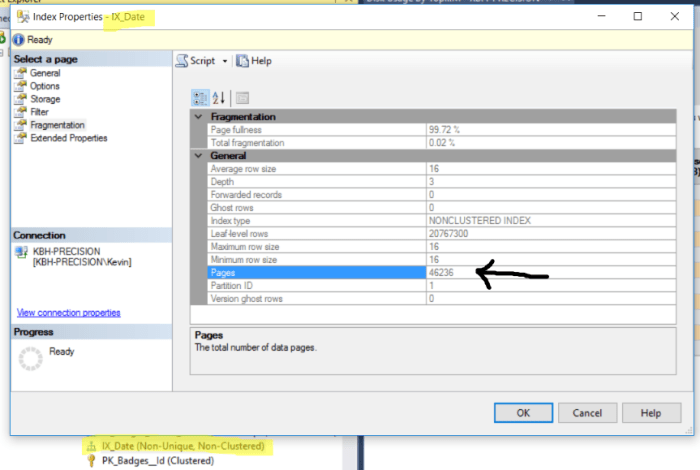
Right-Click the index in question, select “Properties”, then “Fragmentation.”:

index fragmentation

As we know, pages are 8KB, so now its just a simple math problem:

46236 pages x 8 KB /1024 to get to MB = 361 MB (rounded for conversation’s sake):

SQl Server Index size calculator

If you need more than one, but not all…you’re going to need to Google up some T-SQL to run.  I found a variety of ways to do it, and didn’t like any of them.

Thanks for reading!

Kevin3NF

Follow Dallas DBAs on LinkedIn


Filed Under: Accidental DBA, Beginner, Indexing Strategies, SSMS

  • « Go to Previous Page
  • Go to page 1
  • Interim pages omitted …
  • Go to page 27
  • Go to page 28
  • Go to page 29
  • Go to page 30
  • Go to page 31
  • Interim pages omitted …
  • Go to page 44
  • Go to Next Page »

Primary Sidebar

Search

Sign up for blogs, DBA availability and more!

Home Blog About Privacy Policy
  • Home-draft
  • Blog
  • About Us

Copyright © 2026 · WordPress · Log in


Loading Comments...